Getting Started with Bubbles in TypeScript: Spinners, Inputs, Lists and Tables for Terminal Apps
Bubble Tea gives you the loop: messages come in, update returns a new model, view draws it. What it doesn't give you is the widgets. A text field with a cursor, a scrolling list, a table with a highlighted row: you'd have to write each one yourself.
That's what Bubbles is: Charm's library of ready-made components for Bubble Tea, and @oakoliver/bubbles is its TypeScript port. This guide adds five of them to small programs, one at a time.
Every component is a tiny Bubble Tea model of its own: you pass it messages, keep what update returns, and put its view() in yours.
If you haven't used Bubble Tea before, read Getting Started with Bubble Tea first. This guide assumes you know what init, update, view and a command are.
I – Install
Bubbles has two peer dependencies: Bubble Tea, which runs the components, and Lip Gloss, which styles them. Install all three together:
mkdir bubbles-demo && cd bubbles-demo
npm init -y
npm pkg set type=module
npm install @oakoliver/bubbles @oakoliver/lipgloss @oakoliver/bubbletea
With Bun: bun add @oakoliver/bubbles @oakoliver/lipgloss @oakoliver/bubbletea. They're peer dependencies so that your app and the components share one copy of Bubble Tea and Lip Gloss; two copies would mean two sets of message classes that don't recognise each other.
Run the examples with bun file.ts, or on Node with npx tsx file.ts (after npm install -D tsx).
II – The Pattern Every Component Follows
All components work the same way:
- Create it with a
new…()function, e.g.newSpinner(),newTextInput(),newList()ornewTable(). - In your
update, pass it the message and keep both results:const [spinner, cmd] = this.spinner.update(msg). - Return the component's command from your
update, so its animations and cursor blinking keep running. - Put
component.view()wherever you want it in your ownview().
Step 3 is the one people miss. A spinner animates by sending itself tick messages. If you drop its command, it stops after one frame.
III – A Spinner While Work Runs
// spinner.ts
import { type Cmd, type Model, type Msg, Batch, KeyPressMsg, Program, Quit, Tick } from '@oakoliver/bubbletea';
import { type SpinnerModel, Dot, newSpinner, withSpinner, withSpinnerStyle } from '@oakoliver/bubbles';
import { newStyle } from '@oakoliver/lipgloss';

class Installed {}

// Stand-in for real work: a message that arrives after three seconds.
const install: Cmd = Tick(3000, () => new Installed());

class App implements Model {
  constructor(
    readonly spinner: SpinnerModel,
    readonly done = false,
  ) {}

  init(): Cmd {
    // tick() returns the spinner's first frame message; wrap it to make a Cmd.
    return Batch(() => this.spinner.tick(), install);
  }

  update(msg: Msg): [Model, Cmd] {
    if (msg instanceof Installed) return [new App(this.spinner, true), Quit];
    if (msg instanceof KeyPressMsg && msg.toString() === 'ctrl+c') return [this, Quit];

    // Everything else goes to the spinner, which animates on its own ticks.
    const [spinner, cmd] = this.spinner.update(msg);
    return [new App(spinner, this.done), cmd];
  }

  view(): string {
    return this.done ? '✓ Installed 42 packages\n' : `${this.spinner.view()}Installing dependencies…\n`;
  }
}

const spinner = newSpinner(withSpinner(Dot), withSpinnerStyle(newStyle().foreground('#CBA6F7')));
await new Program(new App(spinner)).run();
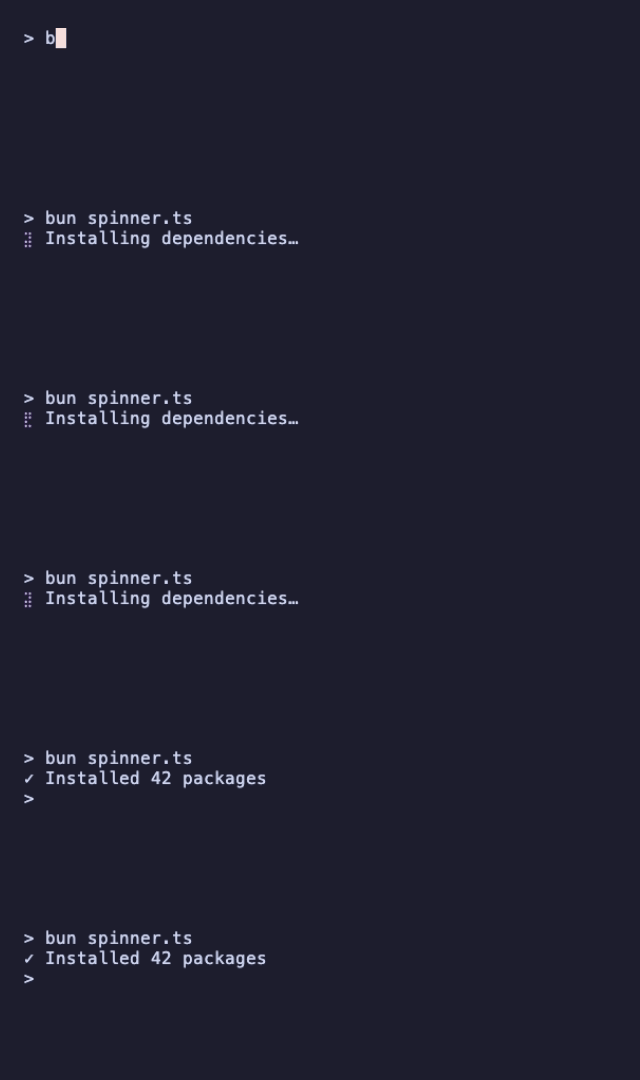
Batch starts two things at once: the spinner's first tick, and the pretend install. In a real program, install would be a command that does real work and returns a message, for example an async function that awaits fetch and returns a Done message.
spinner.tick() returns a message, not a command, so you wrap it in an arrow function: () => this.spinner.tick(). After that first tick, the spinner keeps itself going through the commands its update returns.
There are twelve built-in spinners: Line, Dot, MiniDot, Jump, Pulse, Points, Globe, Moon, Monkey, Meter, Hamburger and Ellipsis.
IV – A Text Input
// input.ts
import { type Cmd, type Model, type Msg, KeyPressMsg, Program, Quit } from '@oakoliver/bubbletea';
import { type TextInputModel, newTextInput } from '@oakoliver/bubbles';

class Ask implements Model {
  constructor(
    readonly input: TextInputModel,
    readonly submitted = false,
  ) {}

  init(): Cmd {
    // Focusing returns the cursor's blink command.
    return this.input.focus();
  }

  update(msg: Msg): [Model, Cmd] {
    if (msg instanceof KeyPressMsg) {
      switch (msg.toString()) {
        case 'enter':
          return [new Ask(this.input, true), Quit];
        case 'esc':
        case 'ctrl+c':
          return [this, Quit];
      }
    }
    const [input, cmd] = this.input.update(msg);
    return [new Ask(input, this.submitted), cmd];
  }

  view(): string {
    return `What's your name?\n\n${this.input.view()}\n\n(enter to submit, esc to quit)\n`;
  }
}

const input = newTextInput();
input.placeholder = 'Ada Lovelace';
input.charLimit = 40;
input.setWidth(24);

const answer = (await new Program(new Ask(input)).run()) as Ask;
if (answer.submitted) console.log(`Nice to meet you, ${answer.input.value() || 'stranger'}.`);
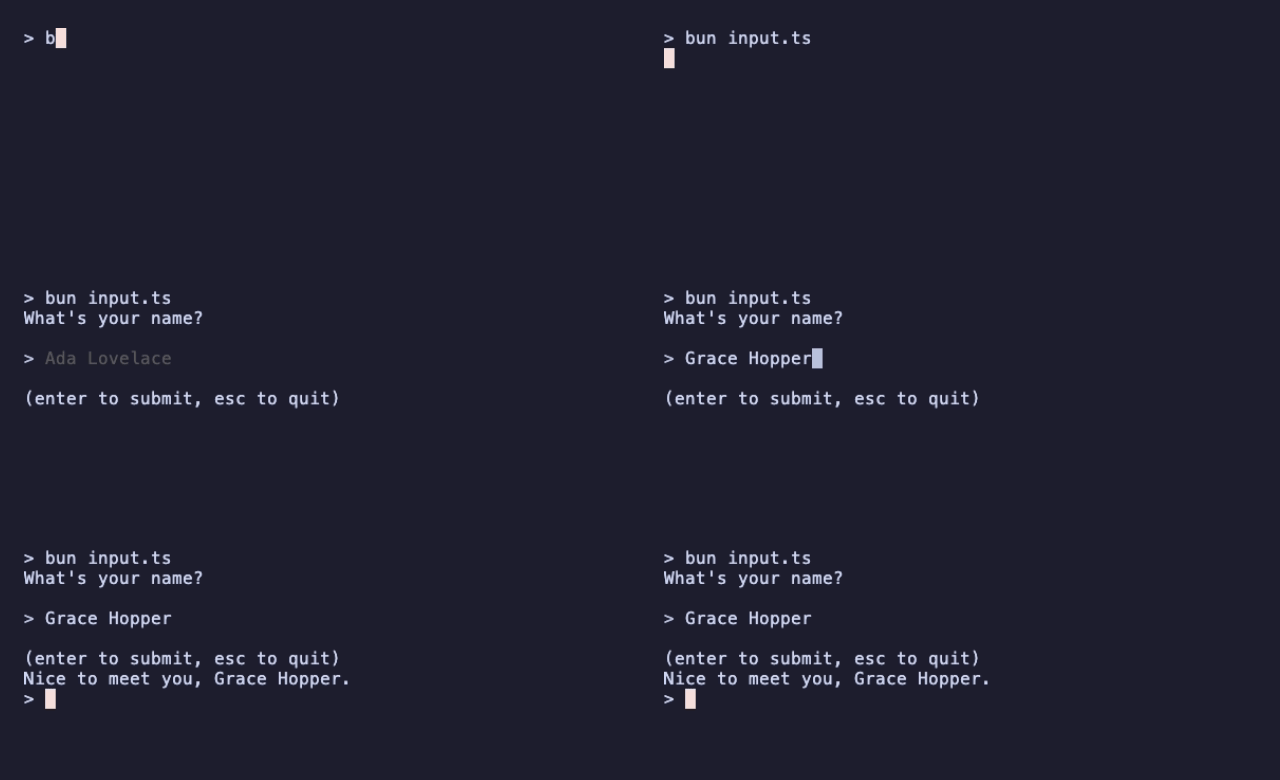
The text input handles everything a text field needs: the blinking cursor, left and right, home and end, word jumps, backspace and delete, paste, a character limit, and horizontal scrolling when the text is wider than the field. focus() returns the cursor's blink command, which is why it's returned from init.
Only a focused input reacts to keys. That matters once you have more than one component, as section VII shows.
Other options worth knowing: input.echoMode (set it to EchoMode.EchoPassword to mask the text), input.validate for a validation function, and input.setSuggestions([...]) with input.showSuggestions = true for autocomplete.
V – A List with Filtering
// list.ts
import { type Cmd, type Model, type Msg, KeyPressMsg, Program, Quit } from '@oakoliver/bubbletea';
import { type ListDefaultItem, type ListModel, newList, newListDefaultDelegate } from '@oakoliver/bubbles';

class Language implements ListDefaultItem {
  constructor(
    readonly name: string,
    readonly blurb: string,
  ) {}
  title() {
    return this.name;
  }
  description() {
    return this.blurb;
  }
  filterValue() {
    return this.name;
  }
}

const languages = [
  new Language('TypeScript', 'JavaScript that remembers your types'),
  new Language('Go', 'Where Bubble Tea comes from'),
  new Language('Rust', 'The borrow checker is your friend'),
  new Language('Zig', 'No hidden control flow'),
  new Language('Elm', 'Where the architecture comes from'),
  new Language('Gleam', 'Friendly types on the BEAM'),
  new Language('OCaml', 'Pattern matching all the way down'),
];

class Picker implements Model {
  constructor(
    readonly list: ListModel,
    readonly picked: Language | null = null,
  ) {}

  init(): Cmd {
    return null;
  }

  update(msg: Msg): [Model, Cmd] {
    if (msg instanceof KeyPressMsg) {
      const key = msg.toString();
      if (key === 'ctrl+c') return [this, Quit];
      // While the user is typing a filter, enter applies the filter instead.
      if (key === 'enter' && !this.list.settingFilter()) {
        return [new Picker(this.list, this.list.selectedItem() as Language), Quit];
      }
    }
    const [list, cmd] = this.list.update(msg);
    return [new Picker(list, this.picked), cmd];
  }

  view(): string {
    return this.list.view();
  }
}

const list = newList(languages, newListDefaultDelegate(), 72, 16);
list.title = 'Pick a language';

const result = (await new Program(new Picker(list)).run()) as Picker;
if (result.picked) console.log(`You picked ${result.picked.name}.`);

You get a lot for free here: pagination (the dots), the help line, a status line with the item count, and fuzzy filtering. Press /, type, then press enter to apply the filter or esc to cancel. Items only need three methods: title(), description() and filterValue().
Note the settingFilter() check. While the user is typing a filter, enter belongs to the list (it applies the filter), so the app only treats enter as "choose" when no filter is being typed.
VI – A Table
// table.ts
import { type Cmd, type Model, type Msg, KeyPressMsg, Program, Quit } from '@oakoliver/bubbletea';
import { type TableModel, newTable, withColumns, withRows, withTableHeight, withTableWidth } from '@oakoliver/bubbles';
import { newStyle, roundedBorder } from '@oakoliver/lipgloss';

const box = newStyle().border(roundedBorder()).borderForeground('#6C7086');

class Planets implements Model {
  constructor(
    readonly table: TableModel,
    readonly chosen: string[] | null = null,
  ) {}

  init(): Cmd {
    return null;
  }

  update(msg: Msg): [Model, Cmd] {
    if (msg instanceof KeyPressMsg) {
      switch (msg.toString()) {
        case 'enter':
          return [new Planets(this.table, this.table.selectedRow()), Quit];
        case 'q':
        case 'ctrl+c':
          return [this, Quit];
      }
    }
    const [table, cmd] = this.table.update(msg);
    return [new Planets(table, this.chosen), cmd];
  }

  view(): string {
    return `${box.render(this.table.view())}\n↑/↓ move • enter choose • q quit\n`;
  }
}

const table = newTable(
  withColumns([
    { title: 'Planet', width: 10 },
    { title: 'Type', width: 10 },
    { title: 'Day length', width: 12 },
  ]),
  withRows([
    ['Mercury', 'rocky', '4,223 h'],
    ['Venus', 'rocky', '2,802 h'],
    ['Earth', 'rocky', '24 h'],
    ['Mars', 'rocky', '24.7 h'],
    ['Jupiter', 'gas giant', '9.9 h'],
    ['Saturn', 'gas giant', '10.7 h'],
  ]),
  // Rows only render once the table has a width, as in upstream Bubbles.
  withTableWidth(38),
  withTableHeight(7),
);
table.focus();

const result = (await new Program(new Planets(table)).run()) as Planets;
if (result.chosen) console.log(`A day on ${result.chosen[0]} lasts ${result.chosen[2]}.`);
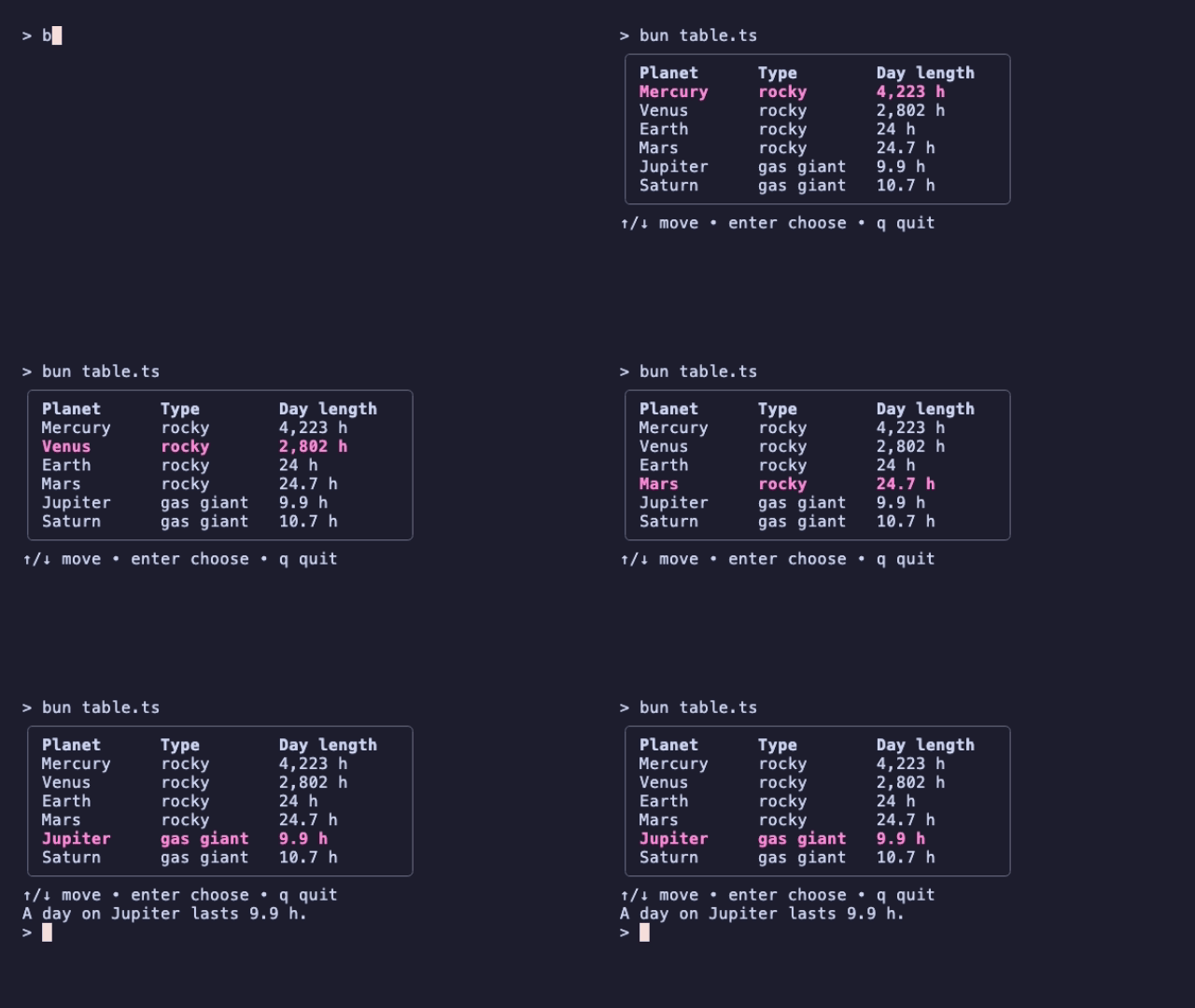
Two details to know:
- Give the table a width. As in the Go original, a table created without
withTableWidthrenders its header but no rows. - Focus it. A blurred table ignores the arrow keys.
table.focus()beforerun()makes it interactive from the start.
selectedRow() returns the highlighted row as an array of strings, so reading the result is just a matter of picking columns.
VII – Two Components, One Model: Focus Switching
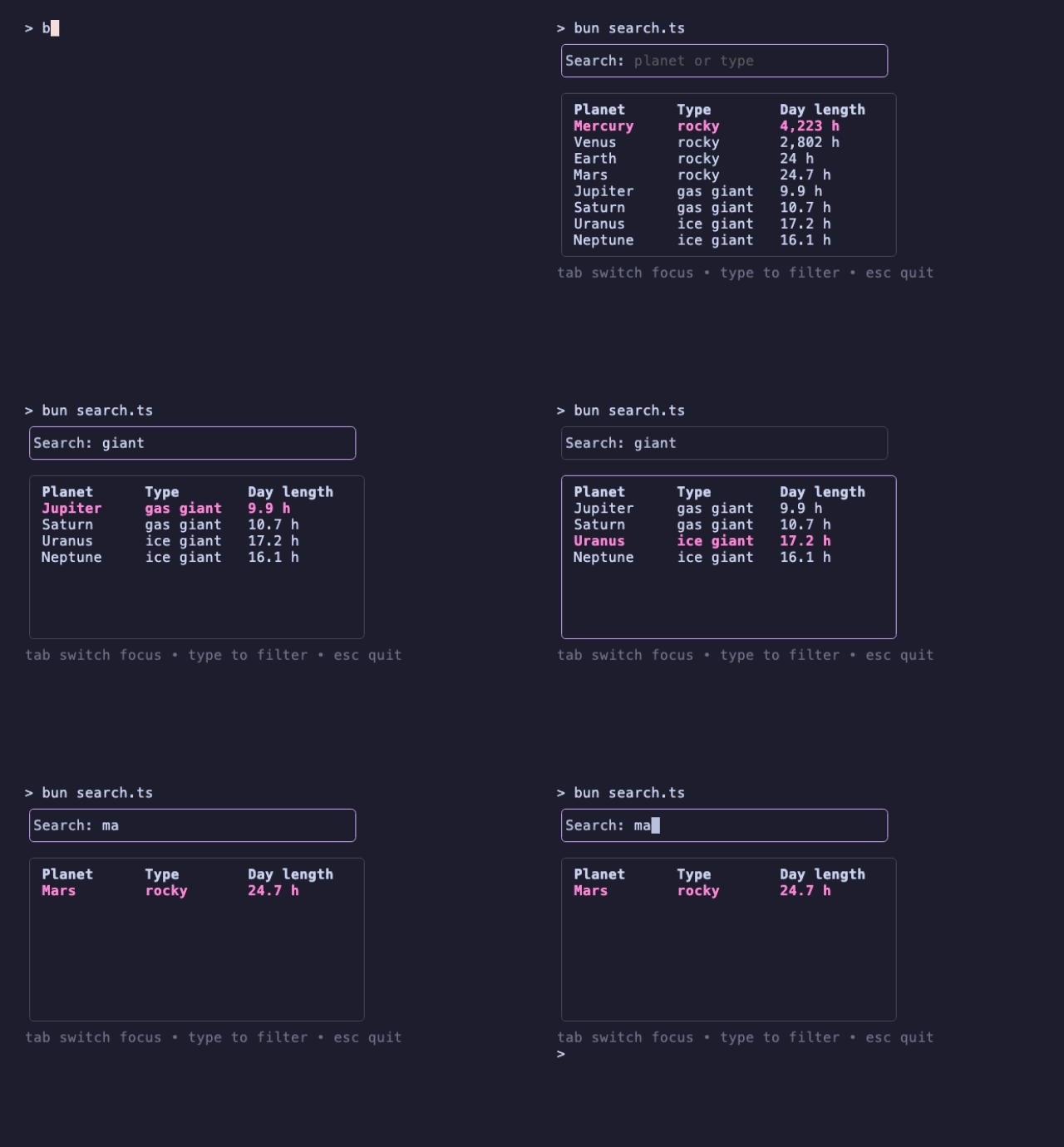
Real screens have more than one component. The rule is simple: only one component is focused at a time, and only it gets the key presses. Tab moves focus between them:
// search.ts
import { type Cmd, type Model, type Msg, KeyPressMsg, Program, Quit } from '@oakoliver/bubbletea';
import {
  type TableModel,
  type TextInputModel,
  newTable,
  newTextInput,
  withColumns,
  withRows,
  withTableHeight,
  withTableWidth,
} from '@oakoliver/bubbles';
import { newStyle, roundedBorder } from '@oakoliver/lipgloss';

const planets = [
  ['Mercury', 'rocky', '4,223 h'],
  ['Venus', 'rocky', '2,802 h'],
  ['Earth', 'rocky', '24 h'],
  ['Mars', 'rocky', '24.7 h'],
  ['Jupiter', 'gas giant', '9.9 h'],
  ['Saturn', 'gas giant', '10.7 h'],
  ['Uranus', 'ice giant', '17.2 h'],
  ['Neptune', 'ice giant', '16.1 h'],
];

const active = newStyle().border(roundedBorder()).borderForeground('#CBA6F7');
const inactive = newStyle().border(roundedBorder()).borderForeground('#45475A');
const help = newStyle().foreground('#6C7086');

type Focus = 'search' | 'table';

class Search implements Model {
  constructor(
    readonly input: TextInputModel,
    readonly table: TableModel,
    readonly focus: Focus = 'search',
  ) {}

  init(): Cmd {
    return this.input.focus();
  }

  update(msg: Msg): [Model, Cmd] {
    if (msg instanceof KeyPressMsg) {
      const key = msg.toString();
      if (key === 'ctrl+c' || key === 'esc') return [this, Quit];
      if (key === 'tab') return this.toggleFocus();
    }

    // Only the focused component sees key presses.
    if (this.focus === 'search') {
      const [input, cmd] = this.input.update(msg);
      const query = input.value().toLowerCase();
      this.table.setRows(planets.filter(([name, kind]) => `${name} ${kind}`.toLowerCase().includes(query)));
      return [new Search(input, this.table, 'search'), cmd];
    }
    const [table, cmd] = this.table.update(msg);
    return [new Search(this.input, table, 'table'), cmd];
  }

  private toggleFocus(): [Model, Cmd] {
    if (this.focus === 'search') {
      this.input.blur();
      this.table.focus();
      return [new Search(this.input, this.table, 'table'), null];
    }
    this.table.blur();
    return [new Search(this.input, this.table, 'search'), this.input.focus()];
  }

  view(): string {
    const searchBox = (this.focus === 'search' ? active : inactive).render(this.input.view());
    const tableBox = (this.focus === 'table' ? active : inactive).render(this.table.view());
    return `${searchBox}\n${tableBox}\n${help.render('tab switch focus • type to filter • esc quit')}\n`;
  }
}

const input = newTextInput();
input.prompt = 'Search: ';
input.placeholder = 'planet or type';
input.setWidth(28);

const table = newTable(
  withColumns([
    { title: 'Planet', width: 10 },
    { title: 'Type', width: 10 },
    { title: 'Day length', width: 12 },
  ]),
  withRows(planets),
  withTableWidth(38),
  withTableHeight(9),
);
table.blur();

await new Program(new Search(input, table)).run();
The border color shows which component has focus. Every key goes to the focused component; non-key messages like the cursor blink go there too here, which is fine for this screen. For a screen with an animated component that isn't focused, such as a spinner, send every message to every component and only filter the key messages by focus.
One honest caveat: focus(), blur() and setRows() change the component in place, while update() returns the next component. Mixing the two styles works, as here, but don't count on old copies of a component staying unchanged.
VIII – Requirements
These programs were run on:
- Bun 1.4
- Node.js 20.18 and 26.8, via
npx tsx. Bubbles' companion package Bubble Tea was also tested on Node 18.20. - Deno 2.8, with
deno run -A file.tsin a project where the packages were installed with npm.
The packages ship ESM and CommonJS builds with TypeScript types. As with any Bubble Tea program, run them in a real terminal.
IX – Where to Go Next
- The repository: the README covers the components this guide skipped: text area, viewport, progress bar, paginator, help, file picker, timer and stopwatch, tree, and the key-binding system.
- The
examples/folder in the repository has runnable programs for the spinner, text input, list, table and progress bar, plus an editor-style tree view. - Getting Started with Bubble Tea: the framework underneath, if you skipped it.
- Porting Go's Bubbles to TypeScript: how the components were ported, and how they're kept in step with the Go original.