Getting Started with ntcharts in TypeScript: Terminal Charts for Bubble Tea and Plain CLIs
A terminal program that shows numbers usually shows them as a table. A chart is often better: a trend you can see at a glance, a spike you cannot miss. Drawing one by hand means picking box-drawing characters, scaling values to rows, and labelling axes, and that gets old after the first chart.
@oakoliver/ntcharts is a TypeScript port of ntcharts, NimbleMarkets' charting library for Bubble Tea. This guide uses it two ways: first as plain strings you print, then inside Bubble Tea programs that update live and respond to the keyboard and the mouse.
A chart is an object you feed data, draw, and turn into a string with view(). Bubble Tea is optional.
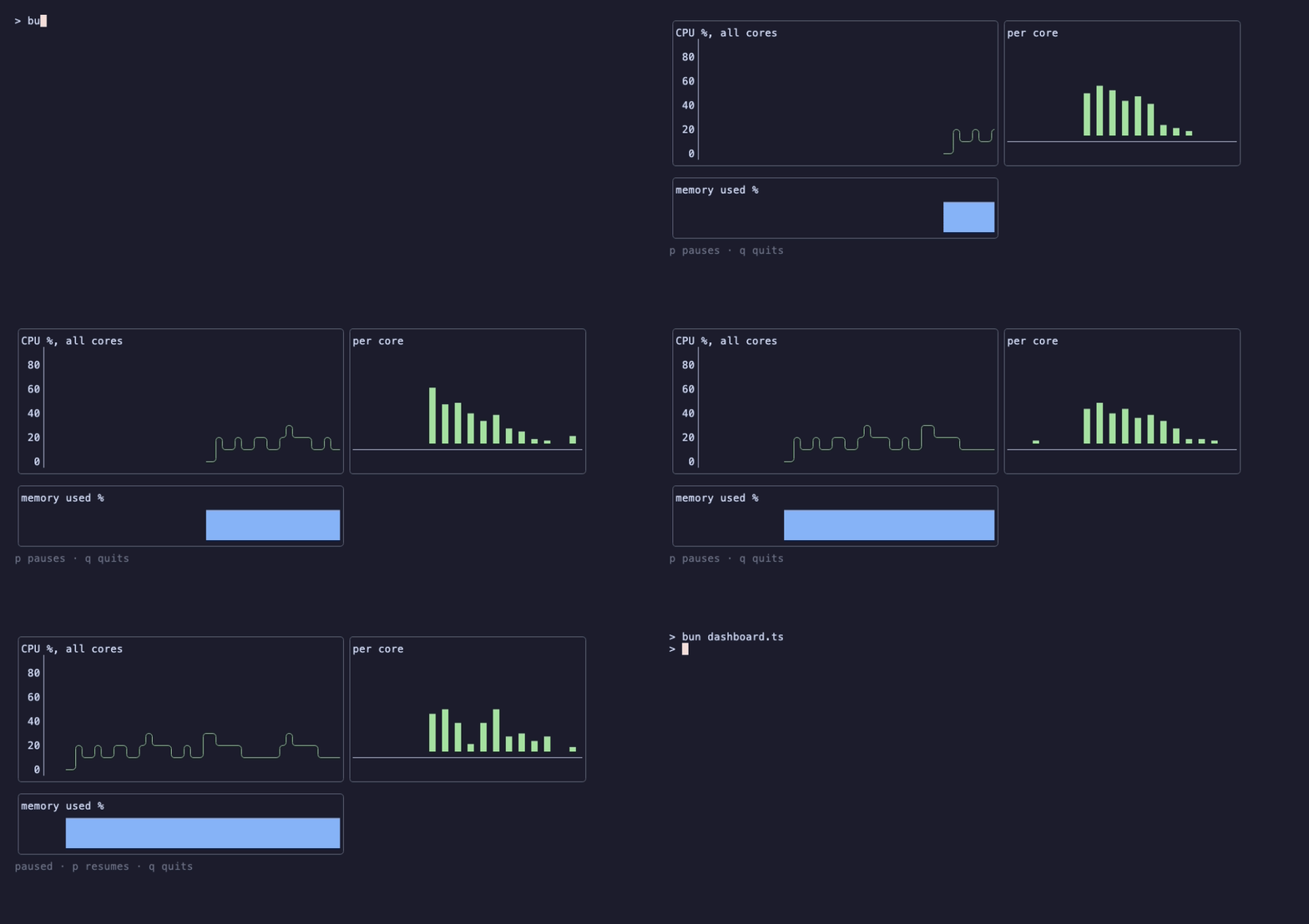
If you want the Bubble Tea parts, read Getting Started with Bubble Tea first; sections V to VII assume you know what init, update, view and a command are. Sections II to IV need no Bubble Tea at all.
I – Install
ntcharts has three peer dependencies: Lip Gloss styles the cells, Bubbles provides the key bindings, and Bubble Tea defines the messages the charts react to. Install them together:
mkdir charts-demo && cd charts-demo
npm init -y
npm pkg set type=module
npm install @oakoliver/ntcharts @oakoliver/lipgloss @oakoliver/bubbles @oakoliver/bubbletea
With Bun: bun add @oakoliver/ntcharts @oakoliver/lipgloss @oakoliver/bubbles @oakoliver/bubbletea. For mouse support (section VI), add @oakoliver/bubblezone.
Run the examples with bun file.ts, node file.ts (current Node versions run TypeScript files directly; these were tested on Node 26.8) or deno run -A file.ts.
Each chart type is its own import path, named after the Go package it ports: @oakoliver/ntcharts/sparkline, @oakoliver/ntcharts/barchart, @oakoliver/ntcharts/linechart/timeserieslinechart, and so on.
II – A Chart Is a String
// hello.ts
import { newStyle } from '@oakoliver/lipgloss';
import * as sparkline from '@oakoliver/ntcharts/sparkline';

const downloads = [12, 18, 15, 22, 31, 28, 35, 41, 38, 47, 52, 49, 58, 66];

const sl = sparkline.New(14, 4, sparkline.WithStyle(newStyle().foreground('#a6e3a1')));
sl.pushAll(downloads);
sl.draw();

console.log('weekly downloads');
console.log(sl.view());
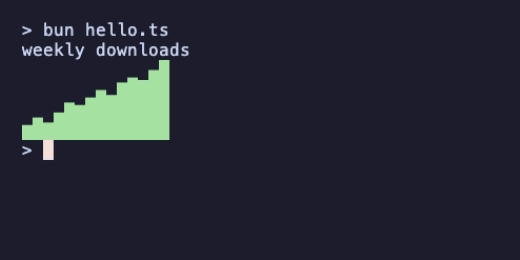
Every chart follows these three steps:
- Create it with
New(width, height, ...options). The size is in terminal cells. Options are functions such asWithStyle(...),WithMaxValue(...)orWithYRange(...). - Feed it data:
push,pushAll,pushDataSetorplot, depending on the chart. - Draw it, then read it.
draw()(ordrawBraille(),drawCandle(), …) renders the data onto the chart's canvas.view()returns the canvas as a string.
Pushing data does not draw anything. If you print view() without calling draw(), you get an empty chart. That split is deliberate: you can push a batch of values and draw once.
The sparkline keeps the latest values that fit its width and scales them to its height, with eighth-of-a-cell steps from the block characters ▁▂▃▄▅▆▇█. Ask for drawBraille() instead and it plots dots, or drawQuadrants() for two values per column.
III – Bars
// bars.ts
import { newStyle } from '@oakoliver/lipgloss';
import * as barchart from '@oakoliver/ntcharts/barchart';

const languages: [string, number, string][] = [
  ['TypeScript', 182, '#89b4fa'],
  ['Go', 96, '#94e2d5'],
  ['Rust', 41, '#fab387'],
  ['Python', 23, '#f9e2af'],
];

const bc = barchart.New(40, 7,
  barchart.WithDataSet(languages.map(([name, kloc, color]) => ({
    label: name,
    values: [{ name, value: kloc, style: newStyle().foreground(color) }],
  }))),
  barchart.WithHorizontalBars(),
);
bc.draw();
console.log(bc.view());
Without colors, the output is:
TypeScript│█████████████████████████████
          │
Go        │███████████████▎
          │
Rust      │██████▌
          │
Python    │███▋
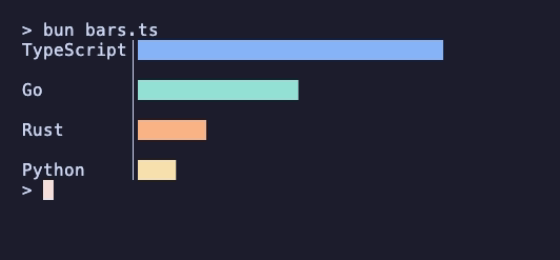
A bar is a label and a list of values; several values in one bar stack, each with its own style, and negative values grow the other way from the axis. The fraction at the end of each bar (▎, ▌, ▋) is the same eighth-of-a-cell trick as the sparkline, sideways.
Note the order of the options: data first, WithHorizontalBars() second. Horizontal bars reserve room for the longest label when they are switched on (or when the chart is resized). Data pushed afterwards is drawn, but its labels get no room. That is how the Go library behaves too, and the port keeps it.
IV – Time on the X Axis
The time series chart takes { time, value } points, where time is a Date. Here are two weeks of daily highs and lows, drawn with braille dots so each cell holds a 2 by 4 grid of points:
// temps.ts
import { newStyle } from '@oakoliver/lipgloss';
import * as tslc from '@oakoliver/ntcharts/linechart/timeserieslinechart';

const highs = [14, 15, 17, 16, 19, 21, 20, 18, 17, 19, 22, 23, 21, 19];
const lows = [6, 7, 9, 8, 10, 12, 11, 9, 8, 10, 13, 14, 12, 10];
const day = 24 * 60 * 60 * 1000;
const start = Date.UTC(2026, 9, 1); // 1 October 2026

const chart = tslc.New(44, 12, tslc.WithYRange(0, 25));
highs.forEach((v, i) => chart.pushDataSet('high', { time: new Date(start + i * day), value: v }));
lows.forEach((v, i) => chart.pushDataSet('low', { time: new Date(start + i * day), value: v }));
// a new chart's time range starts at the current time; fit it to the data
const first = new Date(start);
const last = new Date(start + (highs.length - 1) * day);
chart.setTimeRange(first, last);
chart.setViewTimeRange(first, last);
chart.setDataSetStyle('high', newStyle().foreground('#fab387'));
chart.setDataSetStyle('low', newStyle().foreground('#89b4fa'));
chart.drawBrailleAll();

console.log('°C, daily high and low');
console.log(chart.view());
°C, daily high and low
25│                                  ⣀⡀
  │              ⢀⡠⢄⣀           ⢀⠤⠒⠉⠉ ⠈⠑⠢⢄⡀
20│           ⢀⠔⠊⠁   ⠉⠑⠢⢄⣀⣀  ⣀⠤⠊⠁         ⠈⠑
  │   ⢀⡠⠒⠉⠒⠒⠤⠊⠁            ⠉⠉
15│⠒⠒⠉⠁                           ⣀⠤⠤⠒⠢⢄⡀
  │            ⢀⡠⠔⠊⠑⠒⠤⢄⡀       ⡠⠔⠉      ⠈⠑⠢⢄
10│    ⣀⠤⠒⠤⠤⣀⠤⠊⠁       ⠈⠑⠒⠤⢄⡠⠔⠉
  │⠤⠒⠊⠉
 5│
  │
 0└─────────────────────────────────────────
  '26 10/01   10/04   10/07   10/09   10/12
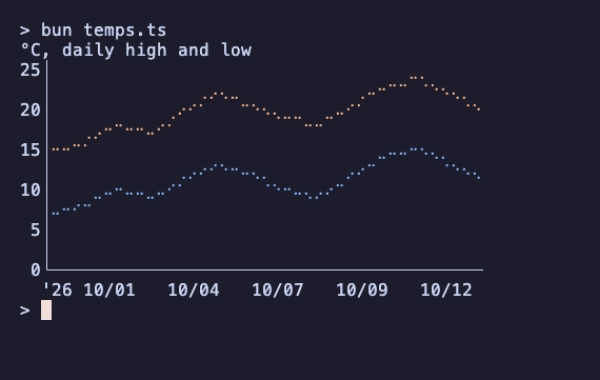
Two things in that program are easy to miss:
- Named data sets.
pushDataSet('high', …)andpushDataSet('low', …)keep two lines on one chart, each with its own style.push()alone writes to a data set calleddefault. - The time range. A new time series chart starts its X range at the moment you create it, and widens it to fit the data you push. For data from the past, that leaves the chart stretched to today with the data squeezed on the left.
setTimeRange()sets the range the data can cover, andsetViewTimeRange()the part on screen; set both to the dates you have.
The same chart draws candlesticks from four data sets, open, high, low and close:
// candles.ts
import { newStyle } from '@oakoliver/lipgloss';
import * as tslc from '@oakoliver/ntcharts/linechart/timeserieslinechart';

// [open, high, low, close] per day
const days: [number, number, number, number][] = [
  [100, 104, 98, 103], [103, 107, 101, 106], [106, 106, 99, 100], [100, 102, 95, 97],
  [97, 101, 96, 100], [100, 108, 99, 107], [107, 112, 105, 111], [111, 113, 106, 108],
  [108, 109, 101, 102], [102, 106, 100, 105], [105, 110, 104, 109], [109, 115, 108, 114],
];
const day = 24 * 60 * 60 * 1000;
const start = Date.UTC(2026, 9, 5);

const chart = tslc.New(50, 14);
days.forEach(([o, h, l, c], i) => {
  const time = new Date(start + i * day);
  chart.pushDataSet('open', { time, value: o });
  chart.pushDataSet('high', { time, value: h });
  chart.pushDataSet('low', { time, value: l });
  chart.pushDataSet('close', { time, value: c });
});
// fit the time range to the twelve days (with half a day either side),
// then the Y range to the candles in view
const first = new Date(start - day / 2);
const last = new Date(start + (days.length - 0.5) * day);
chart.setTimeRange(first, last);
chart.setViewTimeRange(first, last);
chart.fitYToView();
chart.drawCandleWithOpts('open', 'high', 'low', 'close',
  newStyle().foreground('#a6e3a1'), // close above open
  newStyle().foreground('#f38ba8'), // close below open
  { width: 3 });
console.log(chart.view());
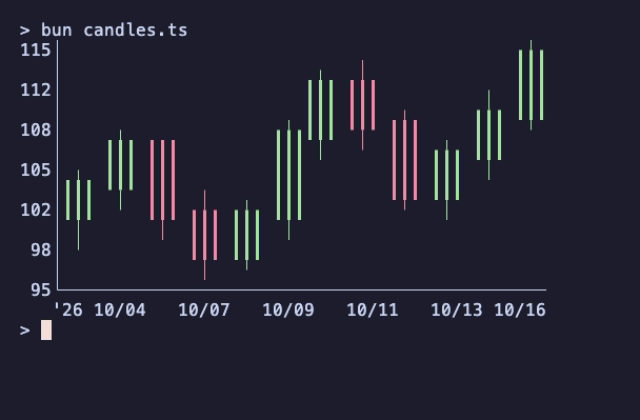
fitYToView() sets the Y range to the values in the visible time range, so the candles fill the height. The width: 3 option draws a three-cell body with the wick in the middle cell; block: true would draw solid blocks instead of line characters.
V – A Live Chart in Bubble Tea
Inside a Bubble Tea program, a chart is a field of your model. You push data in update and put view() in your view. This one samples the machine's real CPU use four times a second:
// cpu.ts
import os from 'node:os';
import { type Cmd, type Model, type Msg, NewProgram, Quit, Tick } from '@oakoliver/bubbletea';
import { newStyle, roundedBorder } from '@oakoliver/lipgloss';
import * as streamlinechart from '@oakoliver/ntcharts/linechart/streamlinechart';
import * as runes from '@oakoliver/ntcharts/canvas/runes';

// CPU busy percentage since the previous call, from the kernel's tick counters.
let last = os.cpus();
function cpuPercent(): number {
  const now = os.cpus();
  let busy = 0;
  let total = 0;
  now.forEach((cpu, i) => {
    const prev = last[i].times;
    const t = cpu.times;
    const idle = t.idle - prev.idle;
    const all = t.user - prev.user + t.nice - prev.nice + t.sys - prev.sys + t.irq - prev.irq + idle;
    busy += all - idle;
    total += all;
  });
  last = now;
  return total > 0 ? (100 * busy) / total : 0;
}

class Sample {
  readonly _tag = 'Sample';
}
const sample = (): Cmd => Tick(250, () => new Sample());

class Cpu implements Model {
  chart = streamlinechart.New(60, 12,
    streamlinechart.WithYRange(0, 100),
    streamlinechart.WithStyles(runes.ArcLineStyle, newStyle().foreground('#a6e3a1')),
  );

  init(): Cmd {
    return sample();
  }

  update(msg: Msg): [Model, Cmd] {
    if (msg instanceof Sample) {
      this.chart.push(cpuPercent());
      this.chart.draw();
      return [this, sample()];
    }
    if (msg?._tag === 'KeyPressMsg' && (msg.toString() === 'q' || msg.toString() === 'ctrl+c')) {
      return [this, Quit];
    }
    return [this, null];
  }

  view(): string {
    const box = newStyle().border(roundedBorder()).borderForeground('#6c7086');
    return box.render(`CPU %, 4 samples a second\n${this.chart.view()}`) + '\nq quits\n';
  }
}

await NewProgram(new Cpu()).run();
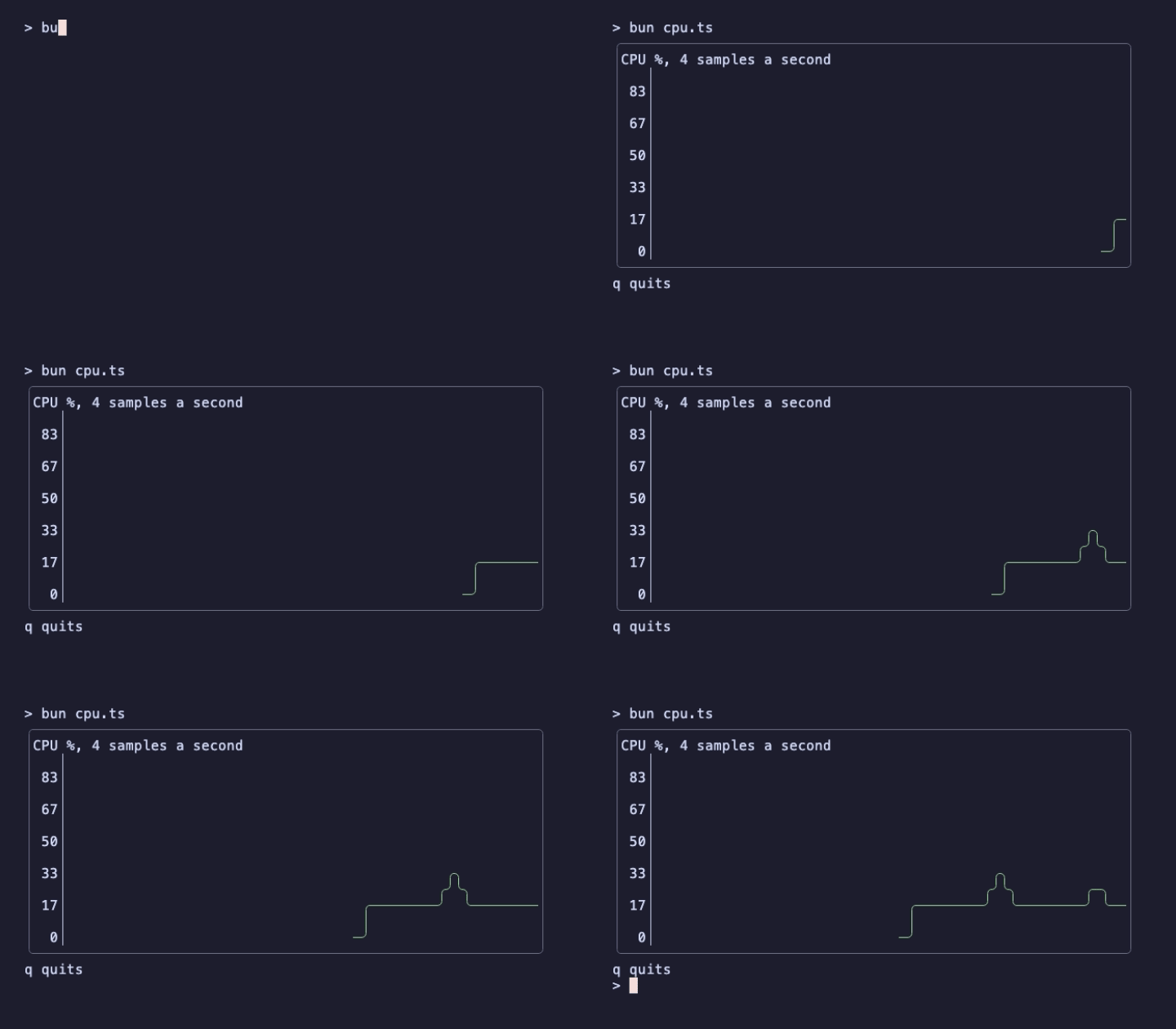
The streamline chart is made for this: each push adds a value at the right edge, and older values slide left until they drop off. Nothing else is needed for a live chart: a Tick command brings a message, the message pushes a value, draw() redraws, and Bubble Tea renders the new view().
WithYRange(0, 100) fixes the Y axis. Without it, the chart widens its range to fit the values it sees, which is handy for data with no natural scale.
VI – Keys and the Mouse
Charts are Bubble Tea components with their own update. A focused chart handles the arrow keys, page up and page down, and the mouse wheel itself; with a bubblezone manager, it also handles dragging. Here is a year of daily temperatures you can zoom into:
// zoom.ts
import { type Cmd, type Model, type Msg, MouseMode, NewProgram, NewView, Quit, type View } from '@oakoliver/bubbletea';
import * as zone from '@oakoliver/bubblezone';
import { newStyle, roundedBorder } from '@oakoliver/lipgloss';
import * as tslc from '@oakoliver/ntcharts/linechart/timeserieslinechart';

// a year of daily temperatures: a seasonal curve plus some day-to-day noise
const day = 24 * 60 * 60 * 1000;
const start = Date.UTC(2025, 10, 1);
const temps = Array.from({ length: 365 }, (_, i) => 13 - 9 * Math.cos(((i - 75) / 365) * 2 * Math.PI) + 1.5 * Math.sin(i * 0.8));

const zm = zone.New();
const chart = tslc.New(70, 14,
  tslc.WithZoneManager(zm),
  // each key press or wheel step zooms or moves by 7 days (the default is 1)
  tslc.WithUpdateHandler(tslc.DateUpdateHandler(7)),
);
temps.forEach((v, i) => chart.push({ time: new Date(start + i * day), value: v }));
chart.setTimeRange(new Date(start), new Date(start + 364 * day));
chart.setViewTimeRange(new Date(start), new Date(start + 364 * day));
chart.setStyle(newStyle().foreground('#fab387'));
chart.focus(); // a focused chart handles keys and the mouse itself
chart.drawBraille();

class Zoom implements Model {
  init(): Cmd {
    return null;
  }

  update(msg: Msg): [Model, Cmd] {
    if (msg?._tag === 'KeyPressMsg' && (msg.toString() === 'q' || msg.toString() === 'ctrl+c')) {
      return [this, Quit];
    }
    chart.update(msg);
    chart.drawBraille();
    return [this, null];
  }

  view(): View {
    const box = newStyle().border(roundedBorder()).borderForeground('#6c7086');
    const body = box.render(chart.view()) + '\npgup/pgdown or wheel: zoom · ←/→ or drag: move · q: quit';
    const v = NewView(zm.scan(body)); // scan() finds the zones marked by the chart
    v.altScreen = true;
    v.mouseMode = MouseMode.CellMotion;
    return v;
  }
}

await NewProgram(new Zoom()).run();
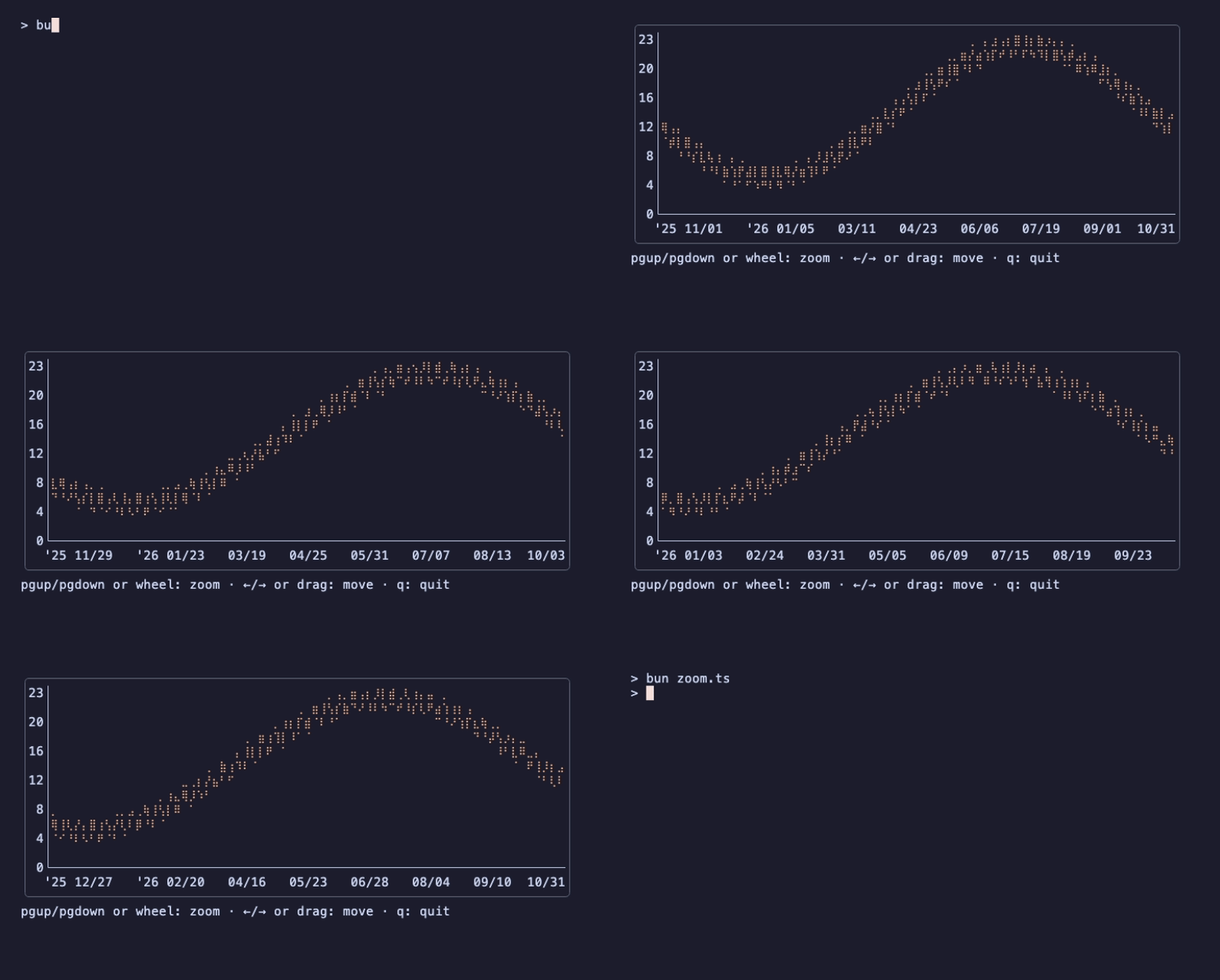
Three pieces make the mouse work:
- A manager from
zone.New(), given to the chart withWithZoneManager. The chart marks its area in itsview()with invisible markers. mouseModeon the view, so the terminal reports clicks, drags and the wheel.zm.scan(...)around the whole view, at the root of your program. It strips the markers and records where each chart ended up on the screen, so a later mouse message can be matched to a chart.
chart.focus() matters as much as the zone: an unfocused chart ignores every message. With two charts on screen, focus one at a time, the same way as with text inputs.
The update handler decides what a key does. The default for a time series chart moves and zooms by one day per step, which is too little for a year of data, so this program asks for DateUpdateHandler(7). There are hour and second variants, and handlers that move without zooming.
VII – Several Charts on One Screen
Lip Gloss joins strings side by side or on top of each other, and a chart's view is a string, so a dashboard is a layout of view() calls:
// dashboard.ts
import os from 'node:os';
import { type Cmd, type Model, type Msg, NewProgram, NewView, Quit, Tick, type View } from '@oakoliver/bubbletea';
import { joinHorizontal, joinVertical, newStyle, roundedBorder, Left, Top } from '@oakoliver/lipgloss';
import * as barchart from '@oakoliver/ntcharts/barchart';
import * as streamlinechart from '@oakoliver/ntcharts/linechart/streamlinechart';
import * as runes from '@oakoliver/ntcharts/canvas/runes';
import * as sparkline from '@oakoliver/ntcharts/sparkline';

// busy percentage of each core since the previous call
let last = os.cpus();
function perCore(): number[] {
  const now = os.cpus();
  const pct = now.map((cpu, i) => {
    const a = last[i].times;
    const b = cpu.times;
    const idle = b.idle - a.idle;
    const all = b.user - a.user + b.nice - a.nice + b.sys - a.sys + b.irq - a.irq + idle;
    return all > 0 ? (100 * (all - idle)) / all : 0;
  });
  last = now;
  return pct;
}

const green = newStyle().foreground('#a6e3a1');
const blue = newStyle().foreground('#89b4fa');
const box = newStyle().border(roundedBorder()).borderForeground('#6c7086');
const dim = newStyle().foreground('#6c7086');

class Tock {
  readonly _tag = 'Tock';
}
const tock = (): Cmd => Tick(250, () => new Tock());

class Dashboard implements Model {
  total = streamlinechart.New(50, 10,
    streamlinechart.WithYRange(0, 100),
    streamlinechart.WithStyles(runes.ArcLineStyle, green),
  );
  cores = barchart.New(os.cpus().length * 2, 10, barchart.WithMaxValue(100), barchart.WithNoAutoMaxValue());
  memory = sparkline.New(50, 3, sparkline.WithMaxValue(100), sparkline.WithStyle(blue));
  paused = false;

  init(): Cmd {
    return tock();
  }

  update(msg: Msg): [Model, Cmd] {
    if (msg instanceof Tock) {
      if (!this.paused) this.sample();
      return [this, tock()];
    }
    if (msg?._tag === 'KeyPressMsg') {
      const key = msg.toString();
      if (key === 'q' || key === 'ctrl+c') return [this, Quit];
      if (key === 'p') this.paused = !this.paused;
    }
    return [this, null];
  }

  sample(): void {
    const cores = perCore();
    this.total.push(cores.reduce((a, b) => a + b, 0) / cores.length);
    this.total.draw();

    this.cores.clear();
    this.cores.pushAll(cores.map((v, i) => ({
      label: '',
      values: [{ name: `cpu${i}`, value: v, style: v > 75 ? newStyle().foreground('#f38ba8') : green }],
    })));
    this.cores.draw();

    this.memory.push((100 * (os.totalmem() - os.freemem())) / os.totalmem());
    this.memory.draw();
  }

  view(): View {
    const left = joinVertical(Left,
      box.render(`CPU %, all cores\n${this.total.view()}`),
      box.render(`memory used %\n${this.memory.view()}`),
    );
    const right = box.render(`per core\n${this.cores.view()}`);
    const help = dim.render(this.paused ? 'paused · p resumes · q quits' : 'p pauses · q quits');
    const v = NewView(joinHorizontal(Top, left, right) + '\n' + help);
    v.altScreen = true;
    return v;
  }
}

await NewProgram(new Dashboard()).run();
Each sample redraws all three charts. The bar chart is cleared and refilled every time, because its bars are a snapshot, not a history. Bar charts and sparklines widen their range to fit the largest value they have seen; WithMaxValue(100) with WithNoAutoMaxValue() keeps percentages on a fixed scale.
The same strings work outside Bubble Tea, in any program that prints text with ANSI colors. In Ink, put view() in a <Text>, with one caveat: Ink 5 mishandles the short reset ESC[m that Lip Gloss writes when the text sits inside a bordered <Box>, so replace it with ESC[0m (view().replaceAll('\x1b[m', '\x1b[0m')). The README has a complete Ink example.
VIII – Requirements
These programs were run on:
- Bun 1.4.4
- Node.js 26.8.1, with
node file.ts - Deno 2.8.3, with
deno run -A file.tsin a project where the packages were installed with npm
The package ships ESM and CommonJS builds with TypeScript types, and each chart type has its own import path. Like any Bubble Tea program, the ones in sections V to VII need a real terminal.
IX – Where to Go Next
- The repository: the README covers what this guide skipped: the canvas and its drawing helpers (lines, circles, braille grids, candlesticks), heatmaps, wave line charts, log scales, a second Y axis, and charts built from JSON with the
specpackage. - The
examples/folder has one program per chart type and two full-screen ones: a trading dashboard on invented data and a network latency monitor. - Porting ntcharts from Go to TypeScript: how the port was checked against the Go library, down to the last bit of a floating-point number.
- Package: @oakoliver/ntcharts on npm, source at github.com/oakoliver/ntcharts.